Your customers' order gateway, straight into ERPNext
Smart Gate is a mobile app where stores order wholesale stock: they see their own price tier and the stock in warehouses serving their area, pick a piece, pack or carton, and book a delivery slot in minutes. Every order lands in ERPNext as a submitted Sales Invoice that deducts stock immediately, while your team runs prices, offers, alerts and orders from one workspace. No separate database, no sync.
Search & barcode scanScheduled discount campaignsTracking to delivery
Self-service store sign-upPrices by store tierPiece, pack or cartonOnly the store's area stockFast browsing and searchA cart that checks itselfEvery order is an ERPNext invoiceTracking to deliveryScheduled discount campaignsHome-screen offer bannersAlerts and back-in-stockSupport and complaints in-appSelf-service store sign-upPrices by store tierPiece, pack or cartonOnly the store's area stockFast browsing and searchA cart that checks itselfEvery order is an ERPNext invoiceTracking to deliveryScheduled discount campaignsHome-screen offer bannersAlerts and back-in-stockSupport and complaints in-app
Android + iOSOne app in Arabic and English
38APIs, each with pre-checks
3Price and stock checkpoints up to confirmation
11Settings that change the app instantly, no new release
Before & after
A distributor's day, before and after Smart Gate
Same team, same warehouses, same customers. The difference: orders arrive ready and validated instead of being re-typed.
By phone and WhatsApp
Taking orders
Orders arrive as calls and photographed lists, then get keyed in by hand.
Prices and units
Reps memorise each tier's prices while stores ask what a carton costs versus a piece.
Offers
A discount is announced by message, prices are edited by hand and never reset.
Delivery follow-up
Stores call to ask about their order and nobody knows which truck has it.
vs
With Smart Gate
Taking orders
Stores order themselves and each order lands as a submitted Sales Invoice in ERPNext.
Prices and units
Each store automatically sees its store type's price list, with a price and stock per unit.
Offers
A discount campaign starts and ends on schedule and the original price comes back by itself.
Delivery follow-up
Status and vehicle are updated in the system and show up in the store's "My orders" right away.
Product video
Meet Smart Gate
A quick motion tour of what the product does.
Feature tour
See Smart Gate in action
From the store's screen to the order desk in ERPNext: everything the customer sees is run from your system.
01Browse
Your whole catalog in their pocket
The home screen is built from ERPNext itself: banners from Offer, brands from Brand and categories with images from Item Group. Each store sees only its tier's prices and its area's stock.
Search by item name or code
Scan a barcode to jump to the product
Banners open a category, brand or item
Main categories with sub-categories
Scan a barcodeOffer bannersCart total, always visible
02Offers
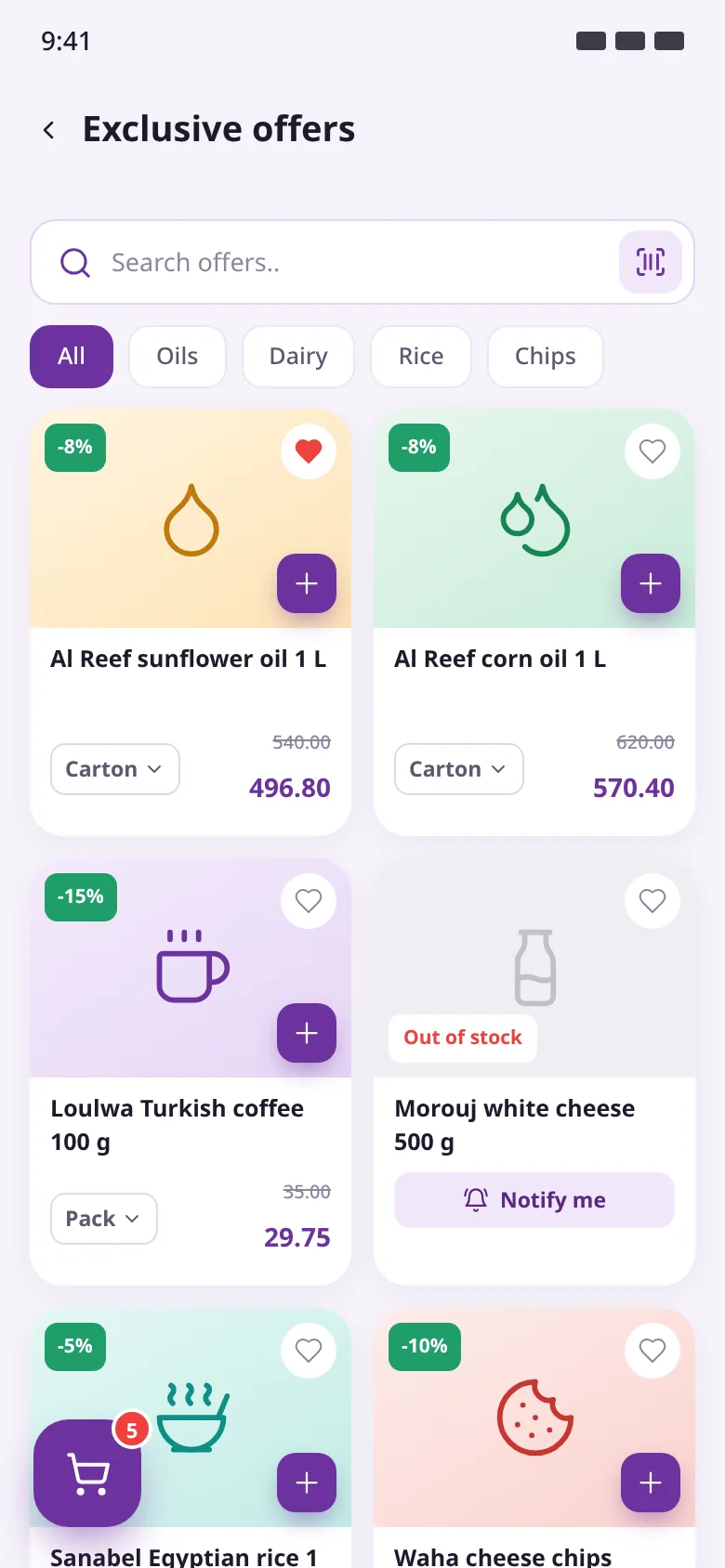
Exclusive offers, clear prices
Every discounted item shows its new price with the old one struck through and goes into the cart in the chosen unit with one tap. Sold out? "Notify me" sends an automatic alert when stock arrives.
Search offers and filter by category
Discount badge on every item
Add to cart in the selected unit
"Available now" on any stock receipt
Discount badgePick the unitNotify me when back
03Cart
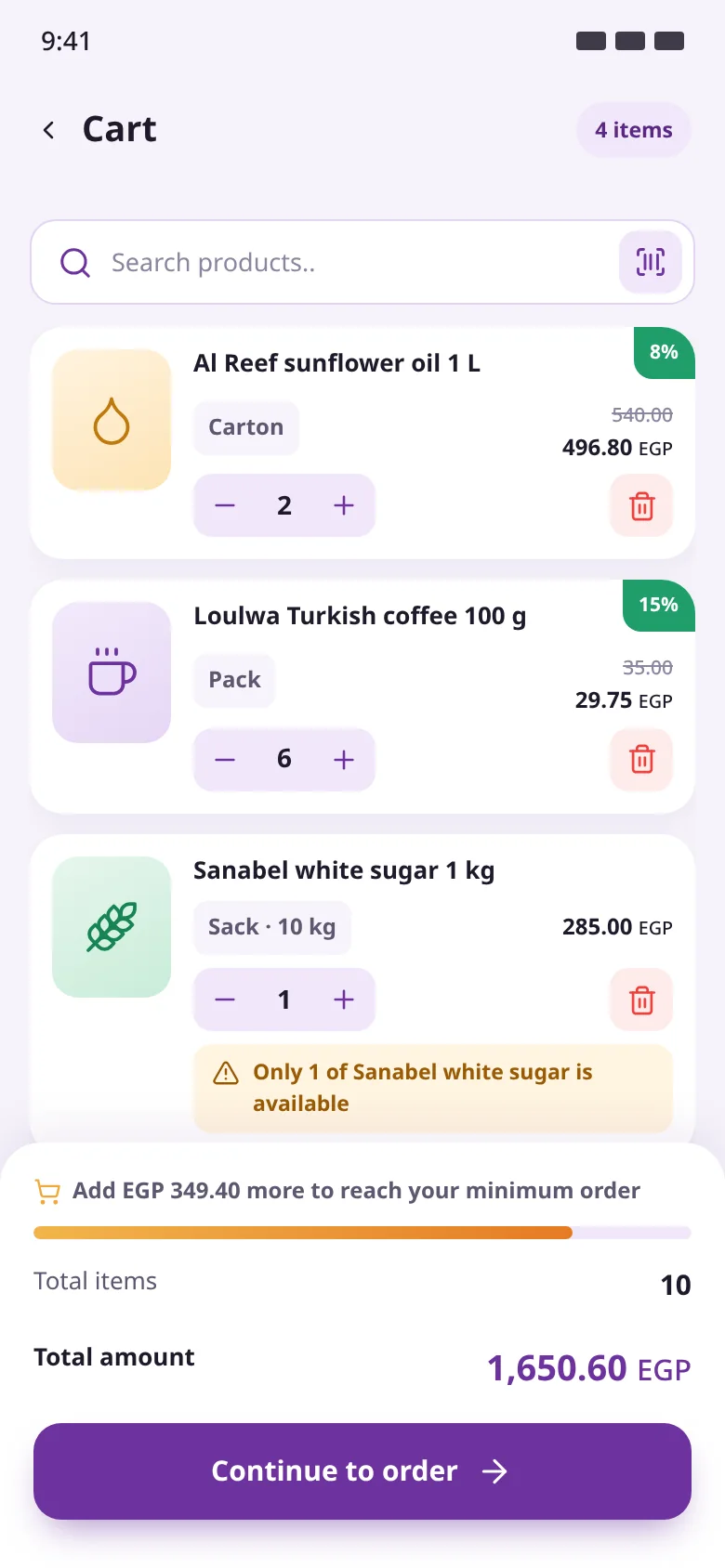
A cart that blocks bad orders
The cart lives on the server, and price, available quantity and unit maximum are recalculated every time. The bottom bar shows how much is left to reach the area's minimum order.
Checks on add, on open and on confirm
A clear message when stock runs short
Minimum order value per area
Same cart on any phone, same account
Discount badgeStock warningLeft to the minimum
04Tracking
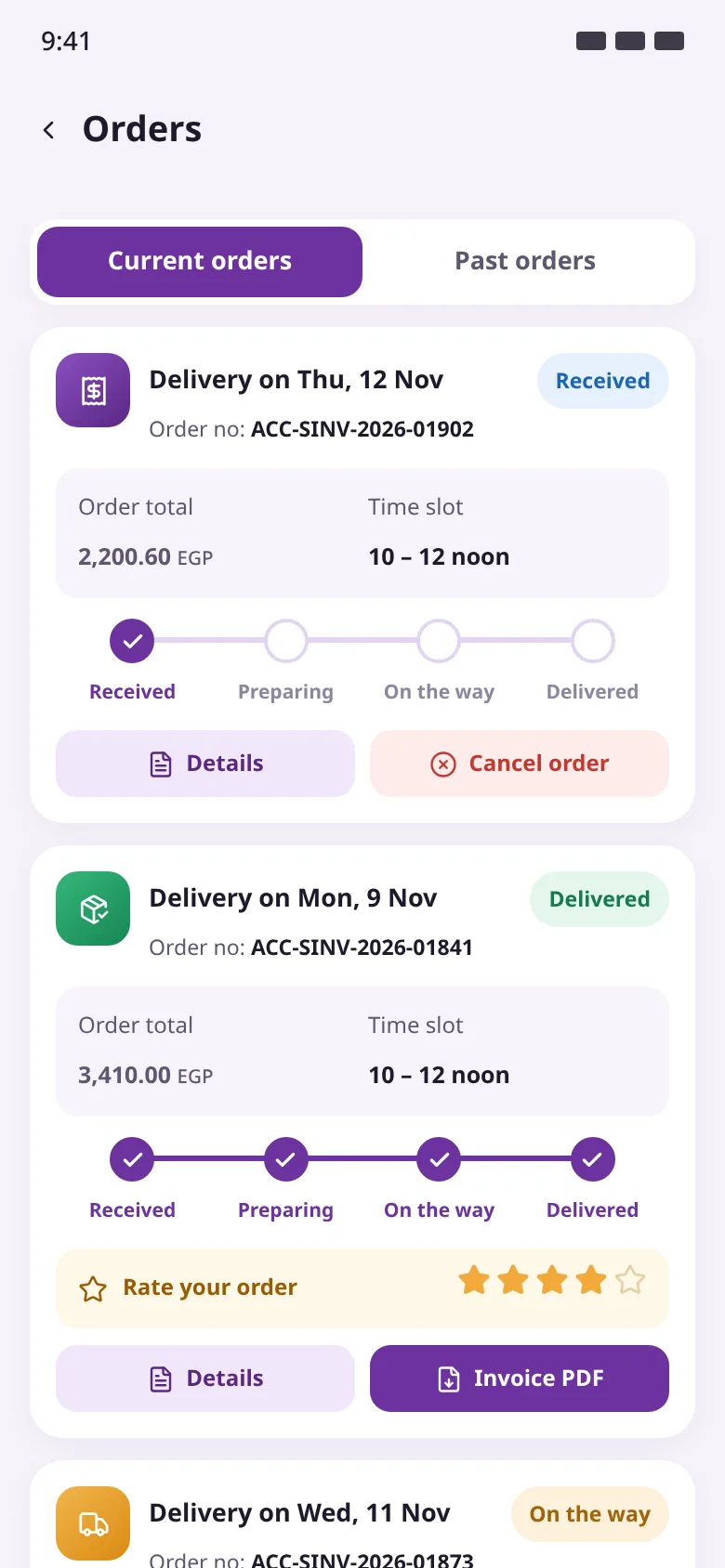
"Where's my order?" answered
Each order carries its invoice number, delivery date and status. Operations update the status in ERPNext and the store sees it instantly, then rates the order and downloads the invoice.
Four stages to delivery
Cancelling returns stock
Invoice PDF in an approved format
1–5 rating after delivery
Order stagesCancel orderRate after delivery
05Order desk
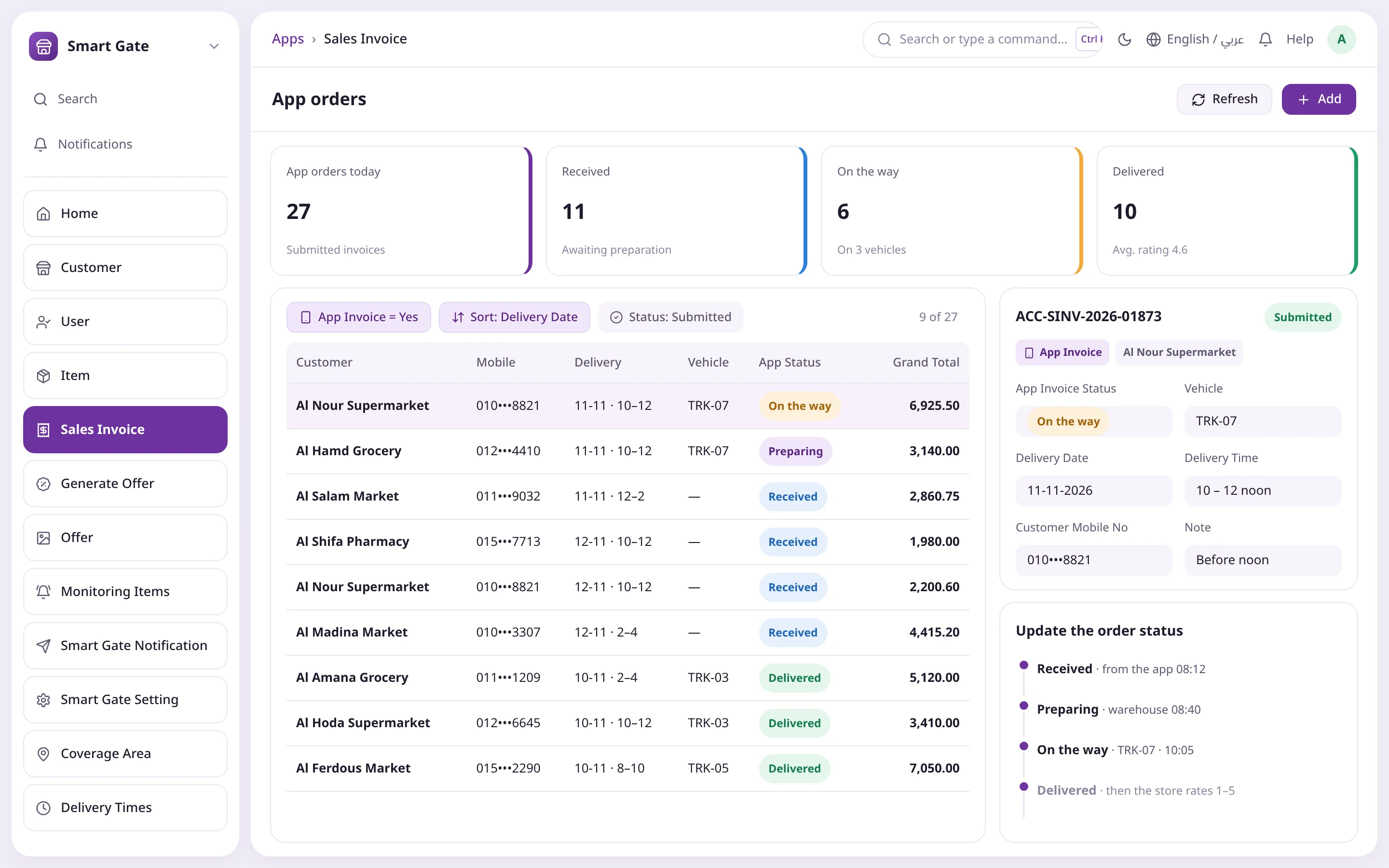
App orders arrive as invoices, ready to pick
Each order is a submitted Sales Invoice flagged App Invoice, handled from the invoice list itself and sorted by delivery date. The team sets status and vehicle, and the store sees the update at once.
App Invoice = Yes filter
Sorted by delivery date and slot
Order status and vehicle on the invoice
Store note and rating on the same document
App orders filterOrder statusStatus and vehicle
06Campaigns
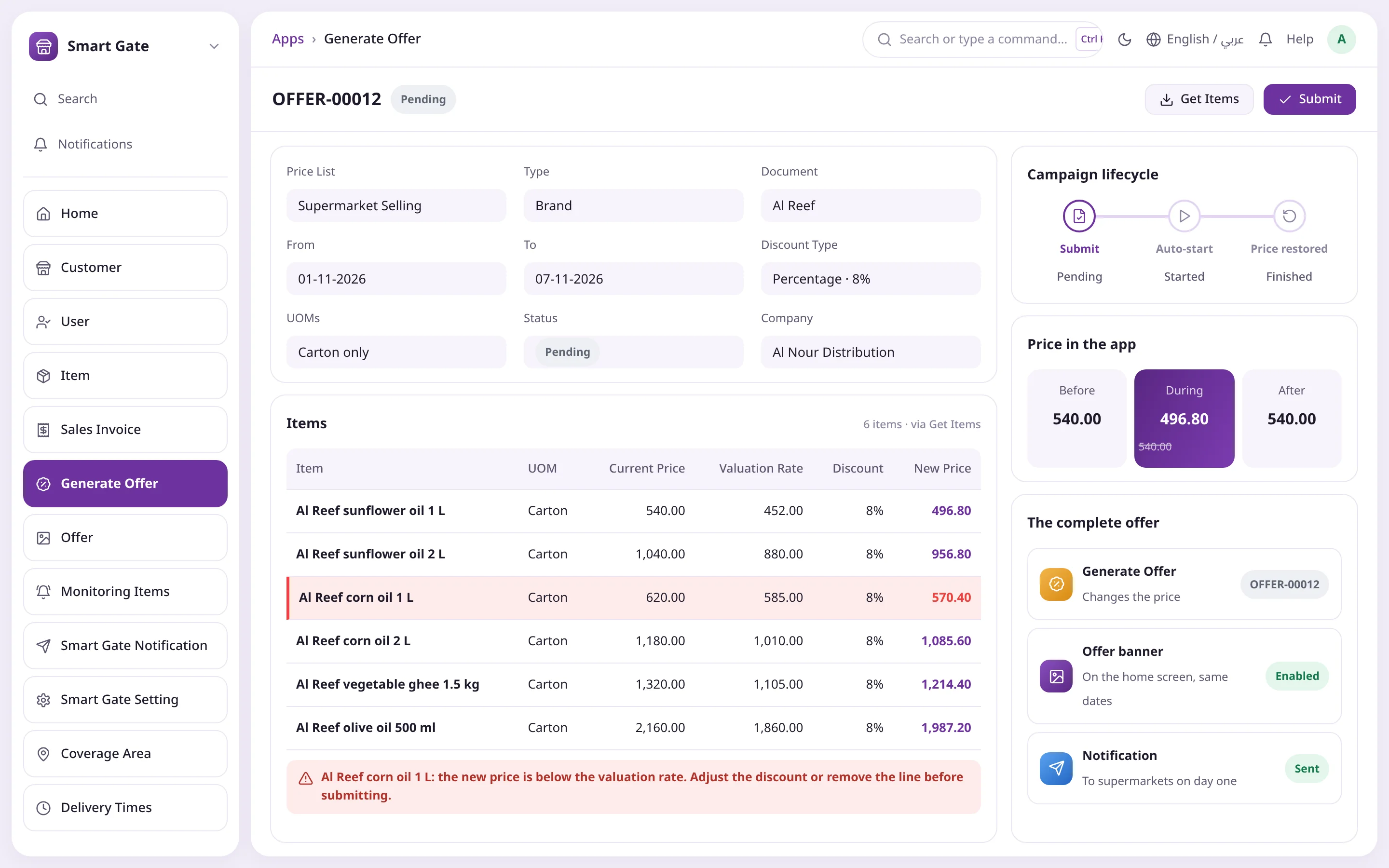
Discounts that start and stop on their own
Pick a price list, dates and scope (item, brand or category), then check valuation rate against the new price before submitting. The campaign starts automatically and the saved price returns when it ends.
Percentage or fixed-amount discounts
Below-cost lines highlighted
Lifecycle: Pending → Started → Finished
Banner and alert for the same dates
Below-cost lineCampaign lifecyclePrice in the app
Scan a barcodeOffer bannersCart total, always visible
Discount badgePick the unitNotify me when back
Discount badgeStock warningLeft to the minimum
Order stagesCancel orderRate after delivery
App orders filterOrder statusStatus and vehicle
Below-cost lineCampaign lifecyclePrice in the app
Every feature
Everything a wholesale order needs, from catalog to doorstep
A store app plus an app installed inside ERPNext, on one database: items, prices, stock and invoices are your system's own data.
Self-service store sign-up
Store owners register with their mobile number, coverage area, store type and map location, creating a linked User and Customer in ERPNext.
A mobile number can't register twice
Instant activation or review first, per your setting
Password reset with a verification code
"Remember me" keeps the device signed in
Prices by store tier
Each store type has its own price list and customer group, so a supermarket sees one price and a grocery another, automatically. Stores only see what applies to them.
Store type sets the price list
A separate price per unit in every list
Items without a price in the tier's list never show a wrong price
Bulk price updates with a temporary app pause
Piece, pack or carton
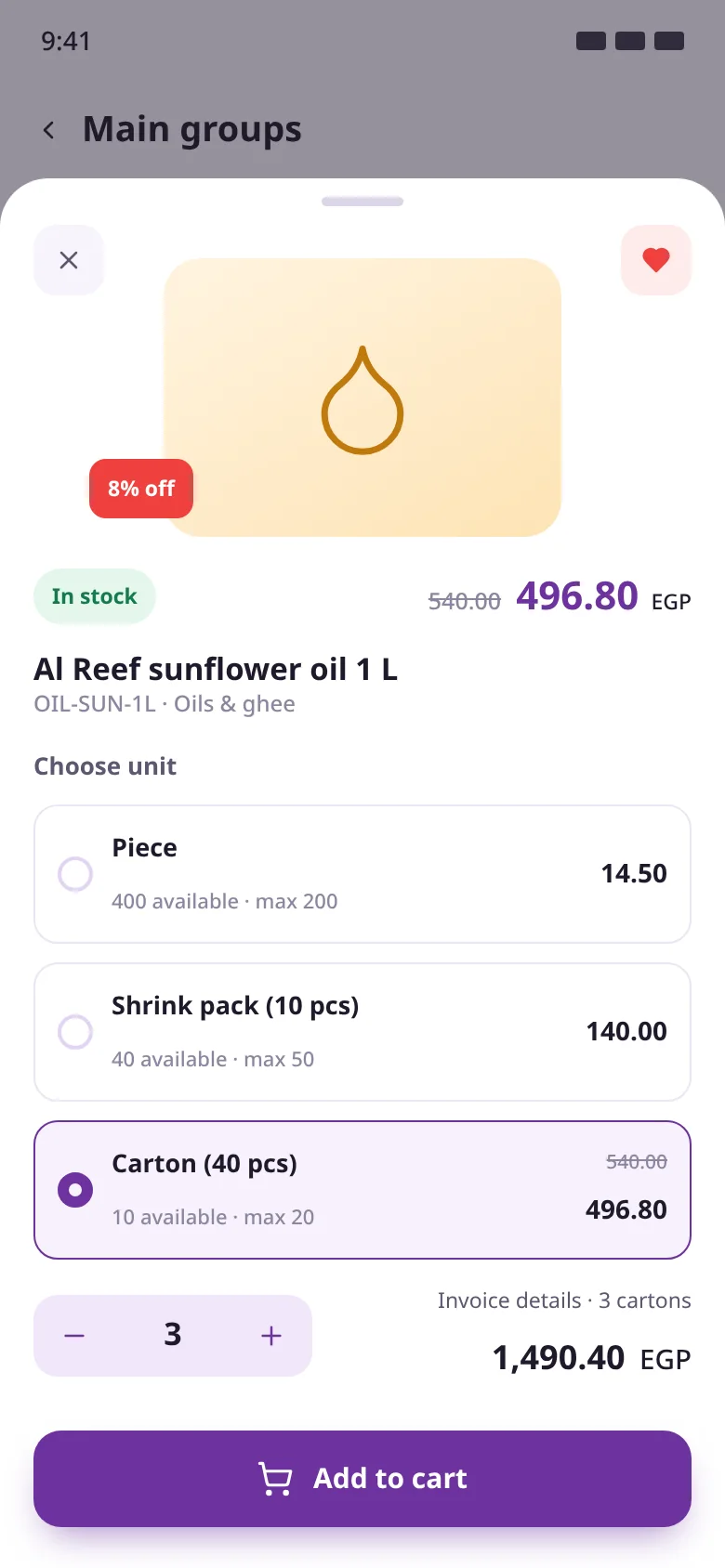
Every item can sell in several units, each with its own price, available quantity and per-order maximum.
Conversion factors from the Item form itself
Available qty = stock ÷ pieces per unit
A per-unit maximum stops one store taking it all
Optional variants (size, flavour) inside one item
Only the store's area stock
Each store belongs to a coverage area matching a branch or delivery route, and availability comes only from the warehouses serving it.
Hide out-of-stock items or tag them "Out of stock"
Fast browsing and search
The home screen is driven from ERPNext: offer banners, brands and categories with images. Stores find items by name, code or barcode scan.
Main and sub-categories from Item Group
Brands from Brand
Scan a product barcode to search
Favorites for quick repeat orders
A cart that checks itself
The cart lives on the server, not the phone. Price, available quantity and unit maximum are re-checked on add, on opening the cart and on confirmation.
Start on one phone, finish on another
A clear message when quantity exceeds stock
A bar showing what's left to the minimum
Discount badge and struck-through old price
Every order is an ERPNext invoice
On confirmation the order is recorded as a submitted Sales Invoice flagged App Invoice. It deducts stock, empties the cart and its number is the order number stores see.
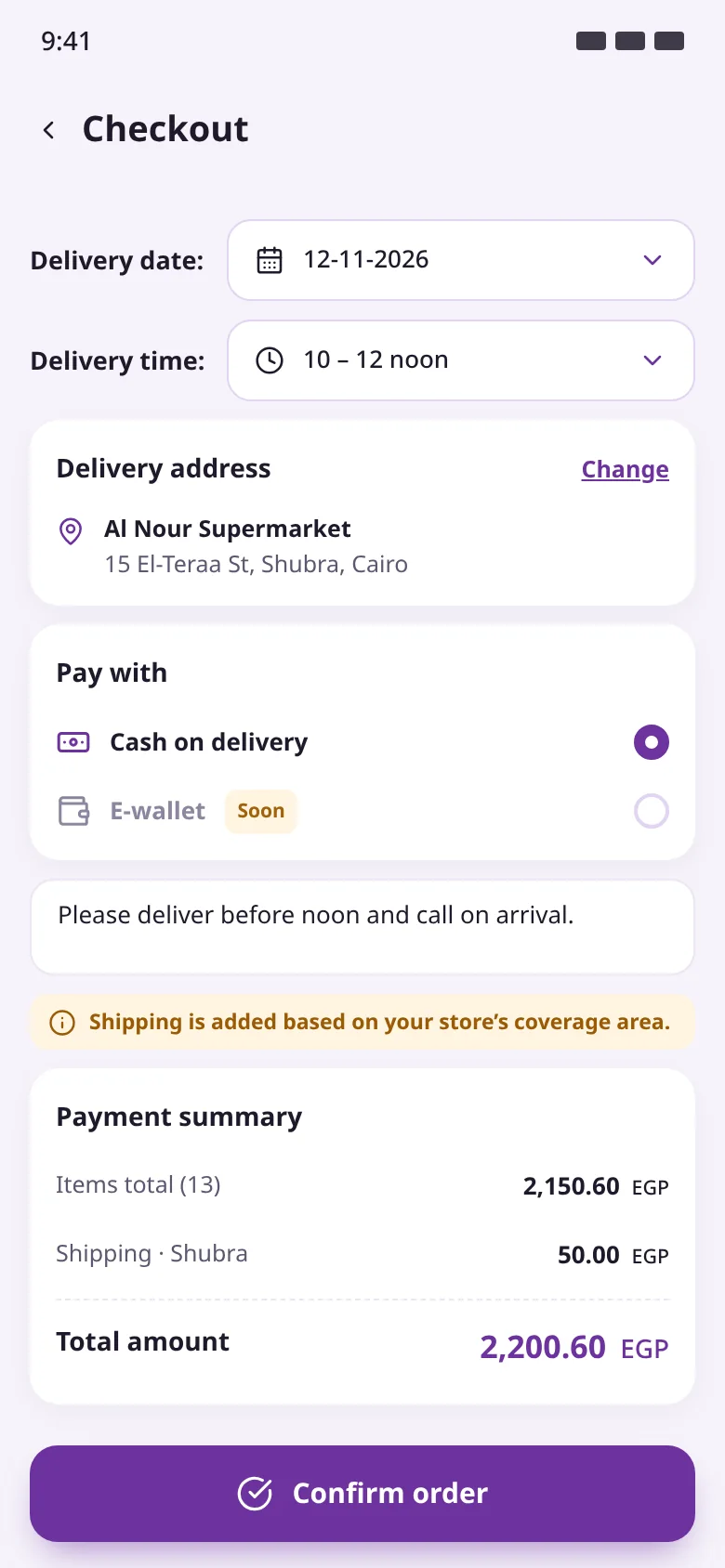
Delivery date and company-defined time slots
Pick a delivery address or add a new one
Payment methods your company enables
Delivery notes saved on the invoice
Tracking to delivery
Four stages your operations team sets on the invoice: Received, Preparing, On the way, Delivered, together with the vehicle carrying the order.
Current and past orders by invoice number
Cancelling voids the invoice and returns stock
Invoice PDF in your approved print format
A 1–5 rating after delivery
Scheduled discount campaigns
Discount an item, a brand or a whole category for a chosen price list. Campaigns start and end automatically and the saved price is restored.
Percentage or fixed-amount discounts
Valuation rate vs. new price before submitting
Approval by the accounts or system manager
Early stop with the Finish Offer button
Home-screen offer banners
A promo banner that opens a category, brand or item and shows only during the offer period, completing the campaign and the notification.
Title and image in one wide format
Links to a category, brand or item
Start and end dates for display
Full offer: price + banner + alert, same dates
Alerts and back-in-stock
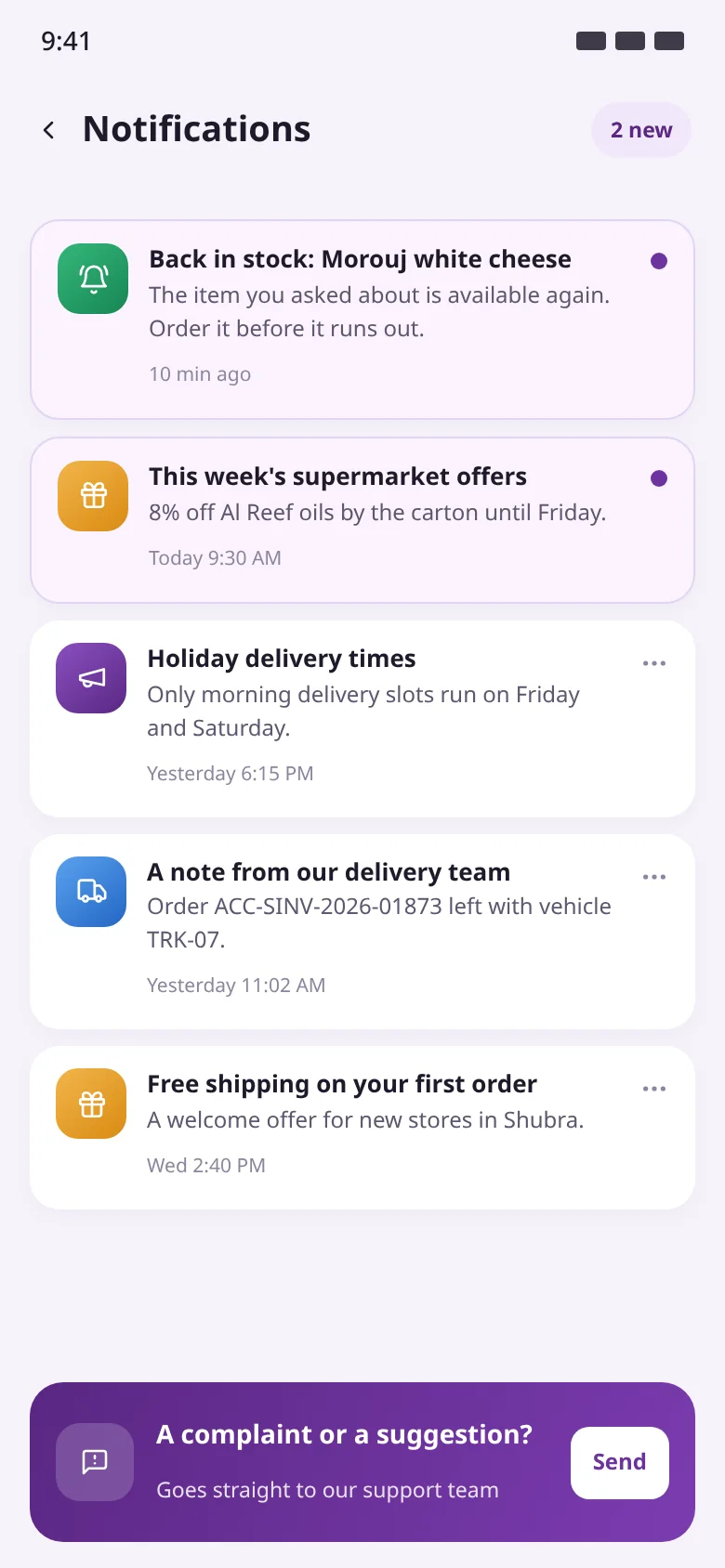
Send notifications from ERPNext to all stores, one store type or a single store, plus an automatic "Available now" alert when a requested item is restocked.
Sent on submit via Firebase
Delivery status: Sent or Failed
Back-in-stock requests list unmet demand
Alerts kept in the app even if the phone was off
Support and complaints in-app
Complaints and suggestions become support tickets linked to the customer, with a support number and WhatsApp a tap away and a clear message for every situation.
Complaints create an Issue in ERPNext
Call and WhatsApp on your support number
Manage addresses and change password
Every app message has a known cause and fix
For every role in your company
Every role in your company has its place
Permissions are ERPNext's own, set in Role Permission Manager to match your structure.
Store owner
Orders in minutes, always knows where it is
Only their tier's prices and area's stock
Picks their own delivery slot
Tracking, invoice PDF and rating
Customer service
Activations, complaints and messages with known fixes
Review, activate or freeze new stores
Complaints arrive as linked tickets
A table mapping every message to its cause and fix
Operations & delivery
Orders sorted by delivery slot
App invoice filter
Set status and vehicle
Cancellations return stock automatically
Sales & pricing
A price list per tier
Store types linked to price lists
A price per unit in every list
Pause the app while prices update
Marketing & accounts
Offers with the cost in view
Campaigns and banners for the same dates
Alerts to all, a tier or one store
Approve campaigns after a cost check
How it works
From sign-up to delivery in six steps
Every step in the app is recorded straight into ERPNext, and every update from your team reaches the store instantly.
01The store signs up
Mobile, area, store type and location; a linked User and Customer are created.
02Support activates it
Instantly, or after reviewing the details and price list.
03Browse and fill the cart
Their tier's prices and their area's stock, in the unit they choose.
04Confirm the order
Date, slot, address, payment and notes, after a final price and stock check.
05An invoice lands in ERPNext
A submitted Sales Invoice flagged App Invoice that deducts stock.
06Prepare and deliver
Preparing, then On the way with a vehicle, then Delivered and rated.
Product screenshots
A tour of the app and the back office
Illustrative screens drawn from the app and the user manual, with demo data.
HomeDelivery address, barcode search, offer banners and categories.
Exclusive offersOffer prices with the old price struck through, plus "Notify me".
Product sheetChoose piece, pack or carton with its own price and stock.
CartStock checks and a minimum-order progress bar.
CheckoutDelivery date and slot, address, payment and summary.
My ordersOrder stages, cancellation, rating and invoice PDF.
NotificationsCompany offers and messages, "Available now" alerts and complaints.
Order desk in ERPNextApp invoices with status, vehicle and delivery slot.
Discount campaignA brand-wide discount with cost versus new price.
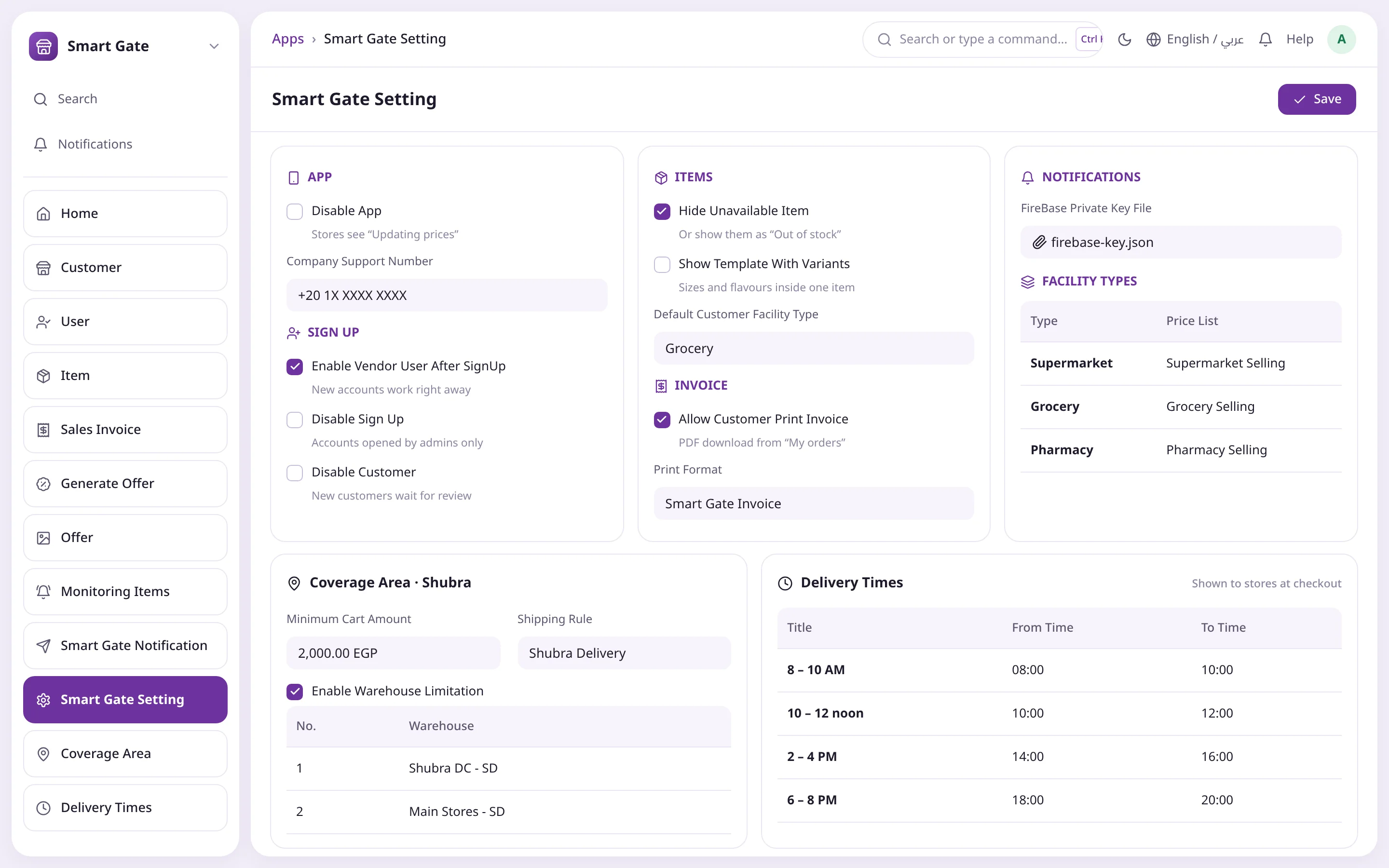
Smart Gate SettingSign-up, items, invoice, notifications, coverage areas and delivery times.
Comparison
The difference, step by step
By phone and WhatsAppWith Smart Gate
Order entryRe-typed by handAutomatic ERPNext Sales Invoice
Tier pricingMemorised by repsPrice list per store type
Stock availabilityFound out at pickingChecked on add, cart and confirm
Minimum orderVerbal estimatePer-area minimum with progress bar
OffersManual price edits, forgottenCampaigns that start and end on schedule
Order statusFollow-up callsStages and vehicle in "My orders"
The challenge
Daily wholesale orders drain your team
When orders arrive by phone and WhatsApp, time goes into re-typing, fixing and chasing instead of selling.
Orders scattered across channels
Calls, chats and photos of handwritten lists get re-keyed by sales staff, with wrong items and quantities.
One price doesn't fit every tier
Supermarkets, groceries and pharmacies buy at different prices, and handling that by hand invites errors and disputes.
Ordering out-of-stock items
Orders are accepted, then shortages show up at picking and the team has to call back to change quantities.
Uneconomic small orders
Small orders to far-off areas push up delivery cost with no clear minimum per area.
Offers nobody hears about
A discount goes out by message, the price is never reset afterwards, or it quietly sells below cost.
"Where is my order?"
Stores can't see order status, so support spends the day answering the same question.
Components
Inside Smart Gate
A store app, plus a Smart Gate workspace inside ERPNext for authorised users.
Store app
Android and iOS, Arabic and English: sign-up, browsing, cart, checkout, tracking, alerts and support.
Smart Gate workspace
Shortcuts to customers, users, items, discount campaigns, banners and back-in-stock requests.
Smart Gate Setting
One screen controls the whole app, and changes apply instantly.
Facility types
Each tier gets a customer group, territory and price list.
Coverage areas
Minimum cart value, shipping rule and serving warehouses per area.
Delivery times
Slots stores choose at checkout, printed on the invoice.
Order desk
App invoices filtered by App Invoice, with status, vehicle and rating.
Generate Offer
Discount campaigns with a Pending, Started, Finished lifecycle.
Offer banners
Home-screen promos linked to a category, brand or item.
Smart Gate Notification
Send to all stores, a store type or one store.
Monitoring Items
Out-of-stock items stores have asked for.
Complaints
Issue tickets linked to the customer, handled in Support.
Who it is for
Built for wholesale sellers
Distributors
Retail orders arrive as ready invoices, sorted by coverage area and delivery slot.
Wholesalers
Pieces, packs and cartons with clear prices and a per-unit maximum.
Manufacturers
A direct ordering channel to traders, with brand- or category-wide campaigns.
Food & FMCG
Large catalogs across categories and brands for supermarkets and groceries.
Pharma & cosmetics distribution
A pharmacy tier with its own price list and back-in-stock alerts.
Multi-branch distributors
Coverage areas with their warehouses, so stores only see what you can deliver.
Integration & tech
Built into ERPNext
Smart Gate runs through a Frappe app installed on your ERPNext server, with no middleware database and no sync.
Compatible with ERPNext 16, on Frappe Cloud or your own server
The catalog is the Item form itself: UOMs, conversion factors, max quantities and image, with prices from Item Price
Available quantity from Bin in the coverage area's warehouses
Orders are submitted Sales Invoices that deduct stock; cancelling returns it
Sign-up creates a linked User and Customer; complaints create an Issue
Push notifications via Firebase, kept in Notification Log
Permissions via Role Permission Manager; errors logged in Error Log by store mobile
The app runs in Arabic and English on Android and iOS
FAQ
Give your stores a direct line into ERPNext
Book a Smart Gate demo and let Operion install it on your system and set up prices and areas with you, through to the first order.
Does Smart Gate need a separate system or database?
No. The app talks to a Frappe app on your ERPNext server, and everything that happens in the app is recorded directly in ERPNext with no sync.
How does an order reach ERPNext?
On confirmation it becomes a submitted Sales Invoice flagged App Invoice. It deducts stock, and its number is the order number the store sees.
Can different store types see different prices?
Yes. Each store type (supermarket, grocery, pharmacy…) has a price list, and every store sees its type's list automatically.
Where does the available quantity come from?
From stock in the warehouses serving the store's coverage area, divided by the pieces per unit. For example, 400 pieces show as 10 cartons of 40.
How do I run an offer on a whole brand?
Create a Generate Offer for the price list with the brand, dates and discount type, review the cost and submit. It starts and ends automatically and the saved price returns.
Do new stores need approval?
Your choice: instant activation after sign-up, a customer-service review first, or closed self sign-up with accounts opened by your team.
Can a store cancel an order?
Yes, from the order details while it is still at "Received". The invoice is cancelled and stock returns to the warehouse.
How do I update prices without stale-price orders?
Turn on Disable App in the settings so stores see "Updating prices", update Item Price, then turn it off after a spot check.
Do stores get alerts if their phone was off?
Every notification is kept in the app's notifications screen, so the store sees it next time it opens the app.
What does Operion's service include?
Installing Smart Gate on your ERPNext and guiding your team through a 13-step setup checklist to the first order, plus technical support and training.


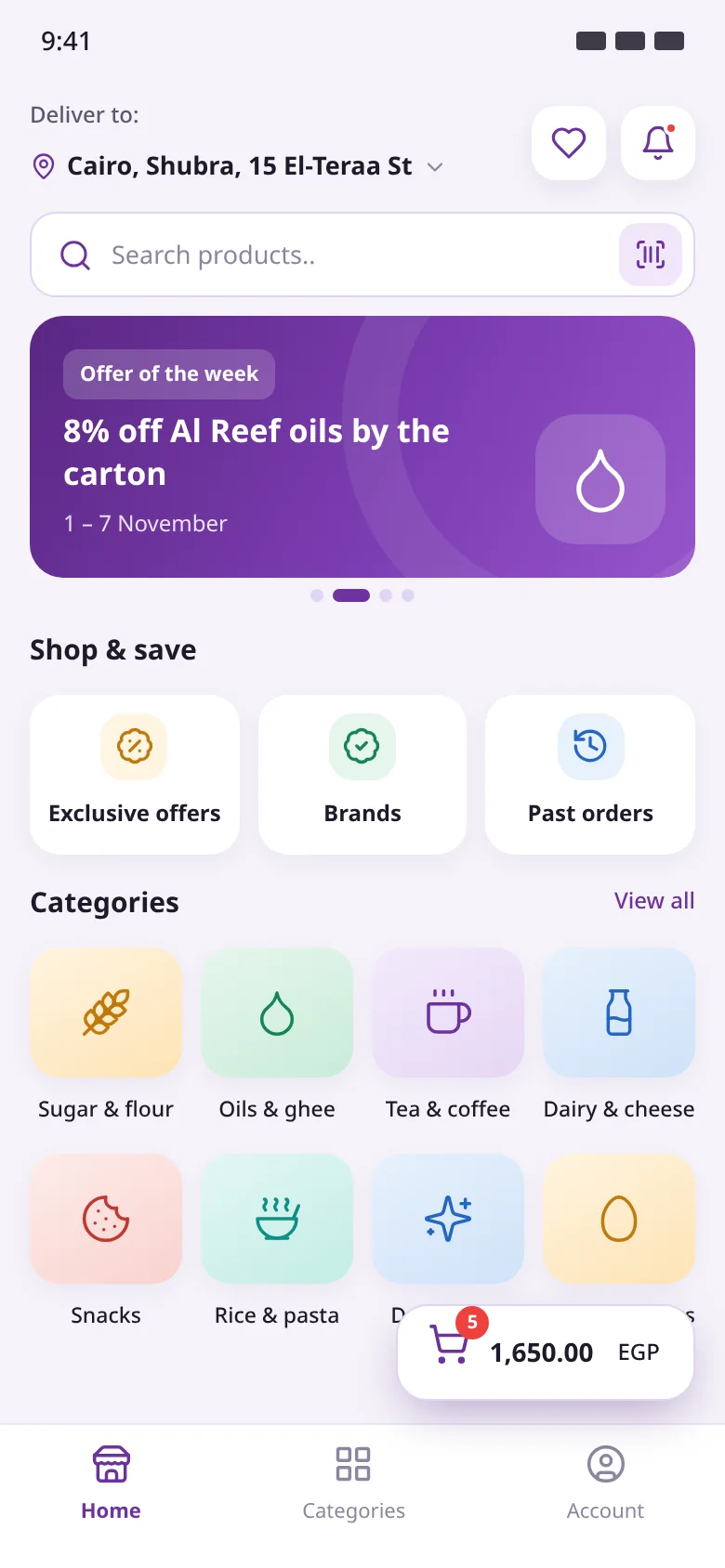 Scan a barcodeOffer bannersCart total, always visible